Discord Translator
Translate messages on Discord Web.
Options Page
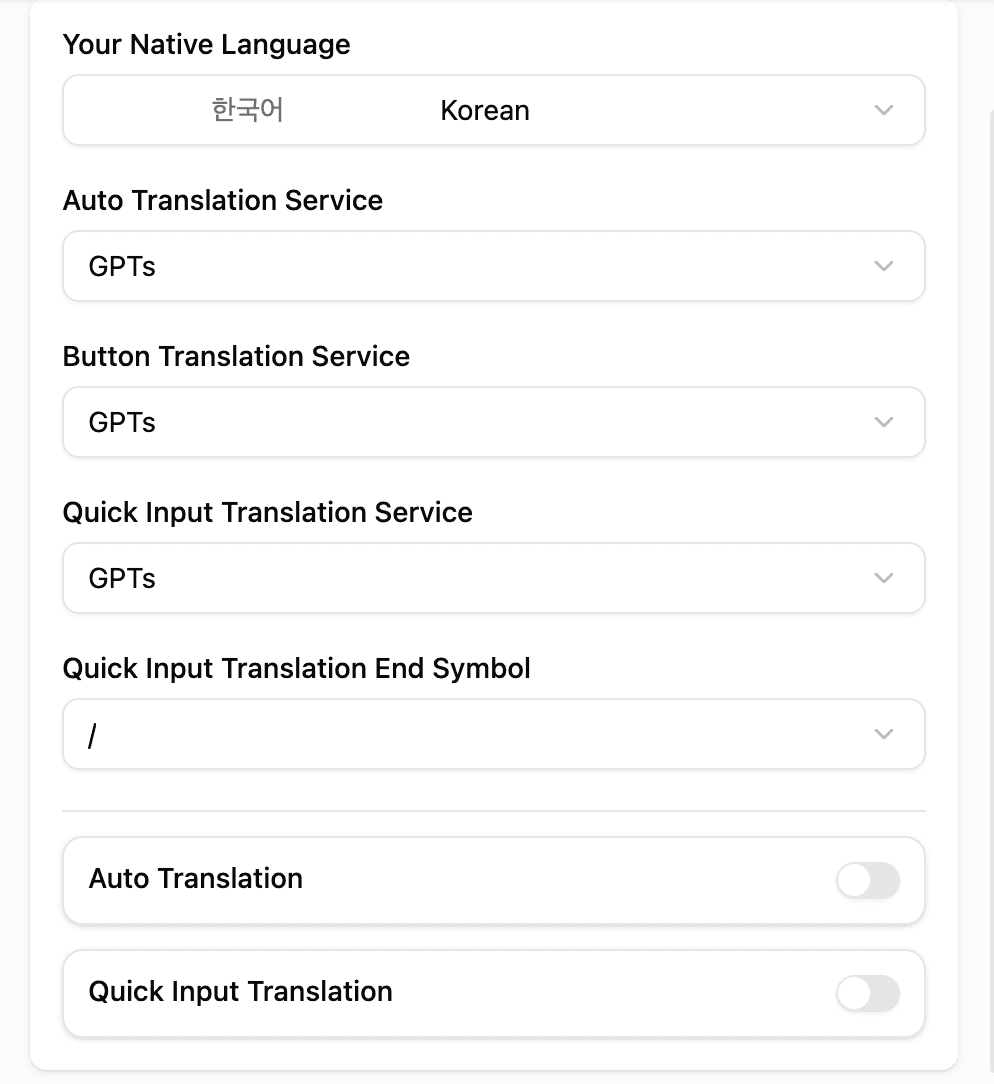
Pop-up Settings
Click the extension icon in your browser toolbar to open the pop-up settings for Discord Translator. From here, you can quickly enable or disable the translator, choose your preferred target language, and access additional settings.
Use the pop-up for quick changes without opening the full options page.
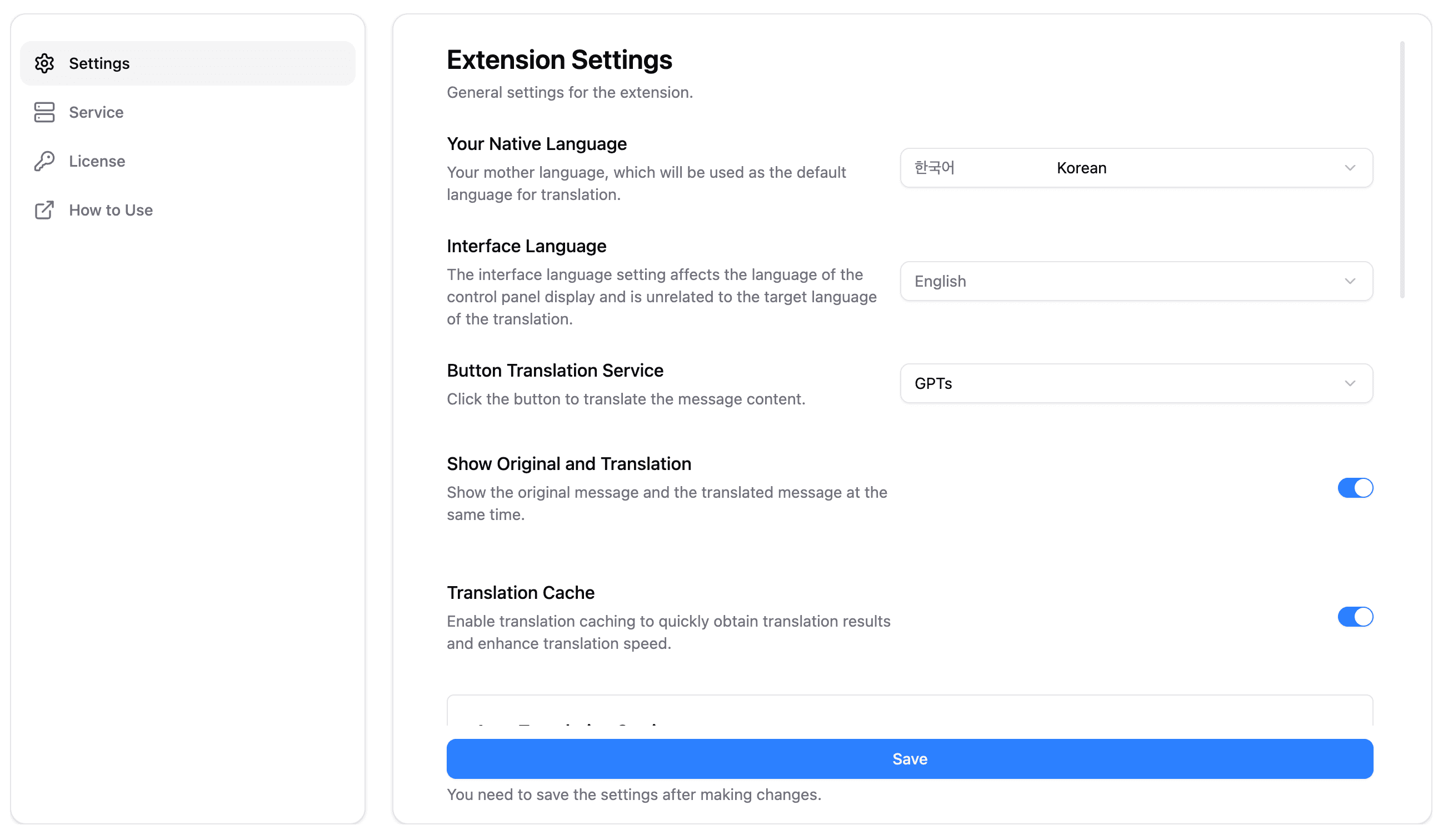
Full Options Page
Right-click the extension icon and select "Options" to access the full settings page. This page provides more detailed configuration options for Discord Translator.
The full options page is recommended for first-time setup or advanced configurations.
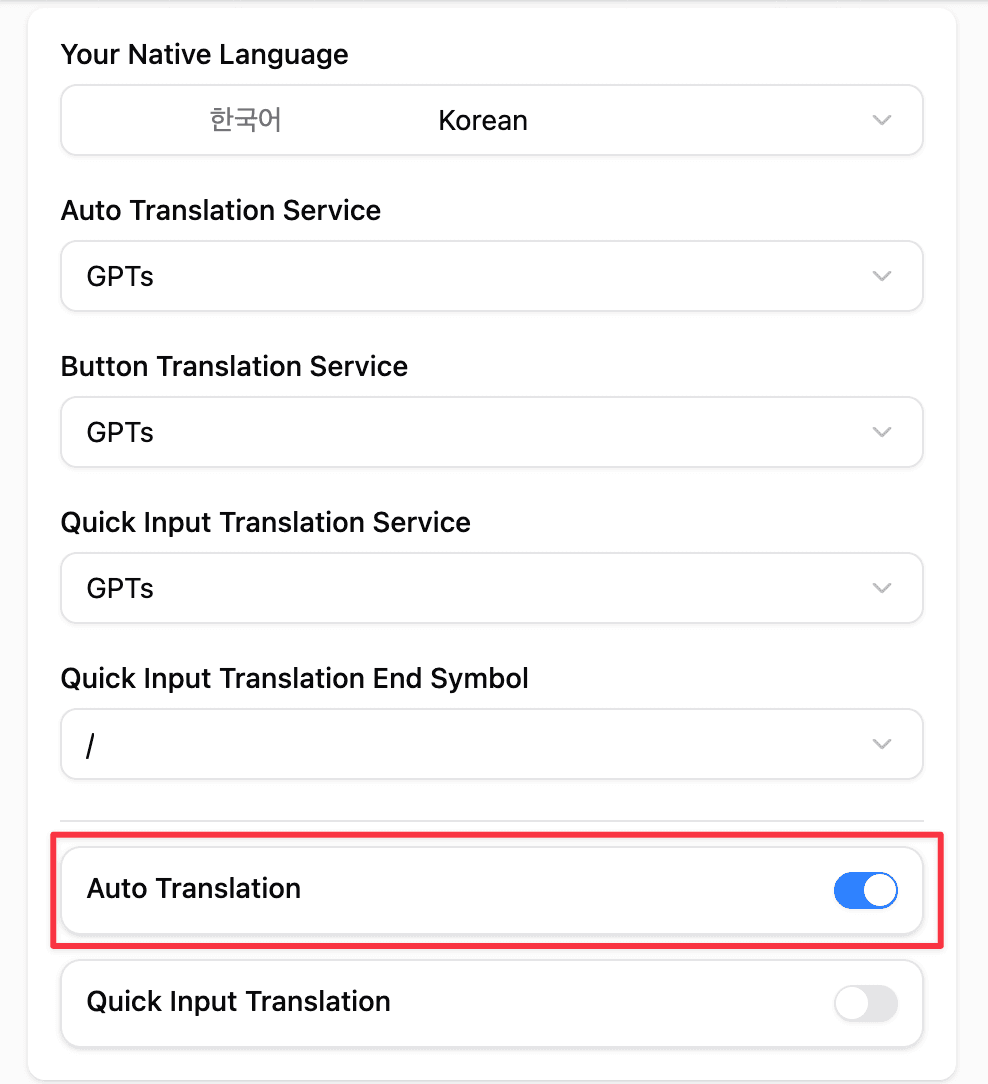
Auto Translation
Click the Extension Icon
Click the extension icon in the browser toolbar to open the pop-up settings for Discord Translator.
Make sure Discord is open in your browser for translation features to work.
Enable Auto Translate
Turn on the "Auto Translate" option to automatically translate incoming messages in Discord to your chosen target language.
Select a language that matches the primary language of your native language for best results.
Button Translation
Open a Discord Channel
Navigate to the Discord channel where you want to translate messages.
Click the Translate Button
Click the "Translate" button that appears next to each message to translate it into your selected target language.
You can translate multiple messages individually by clicking the button for each one.

Quick Input Translation
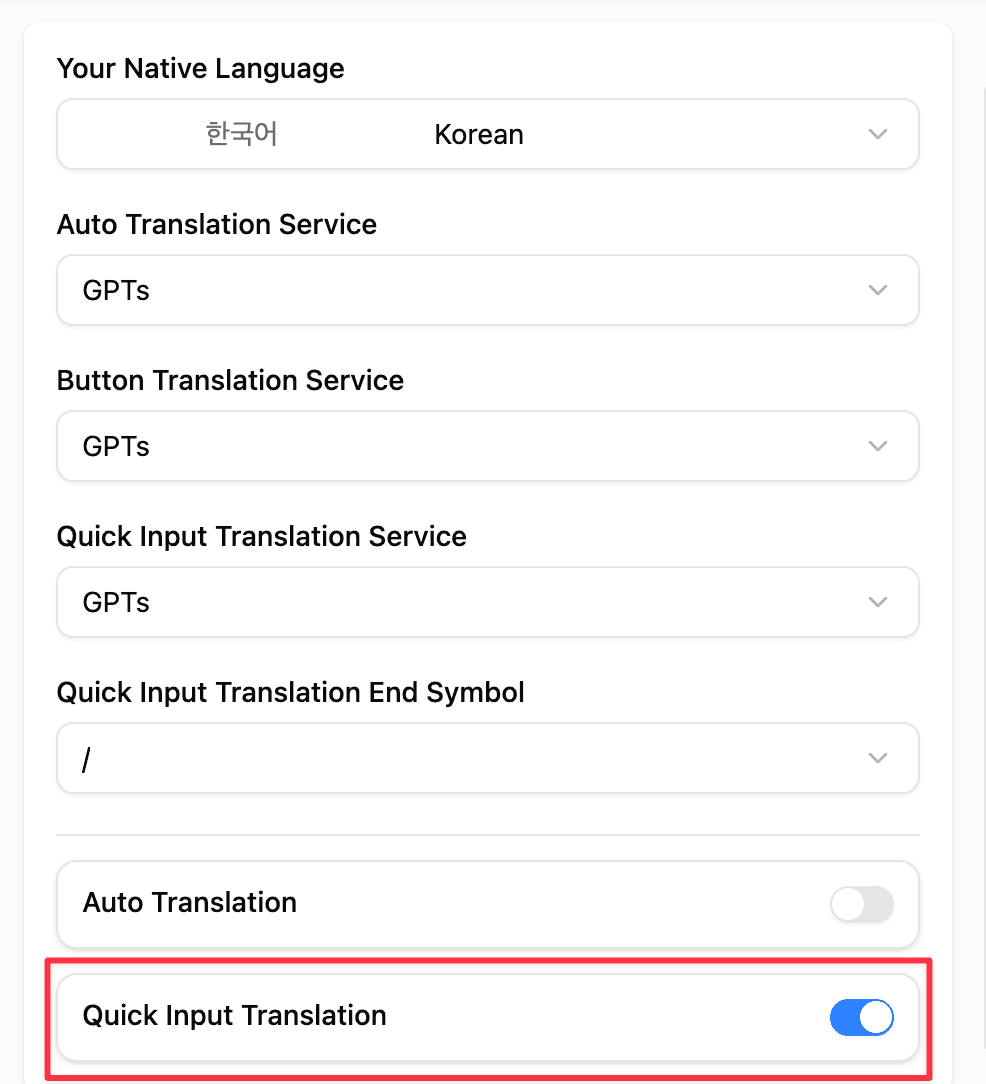
Enable Quick Input Translation
Open the pop-up settings and enable the "Quick Input Translation" option.
This feature is useful for translating messages as you type.
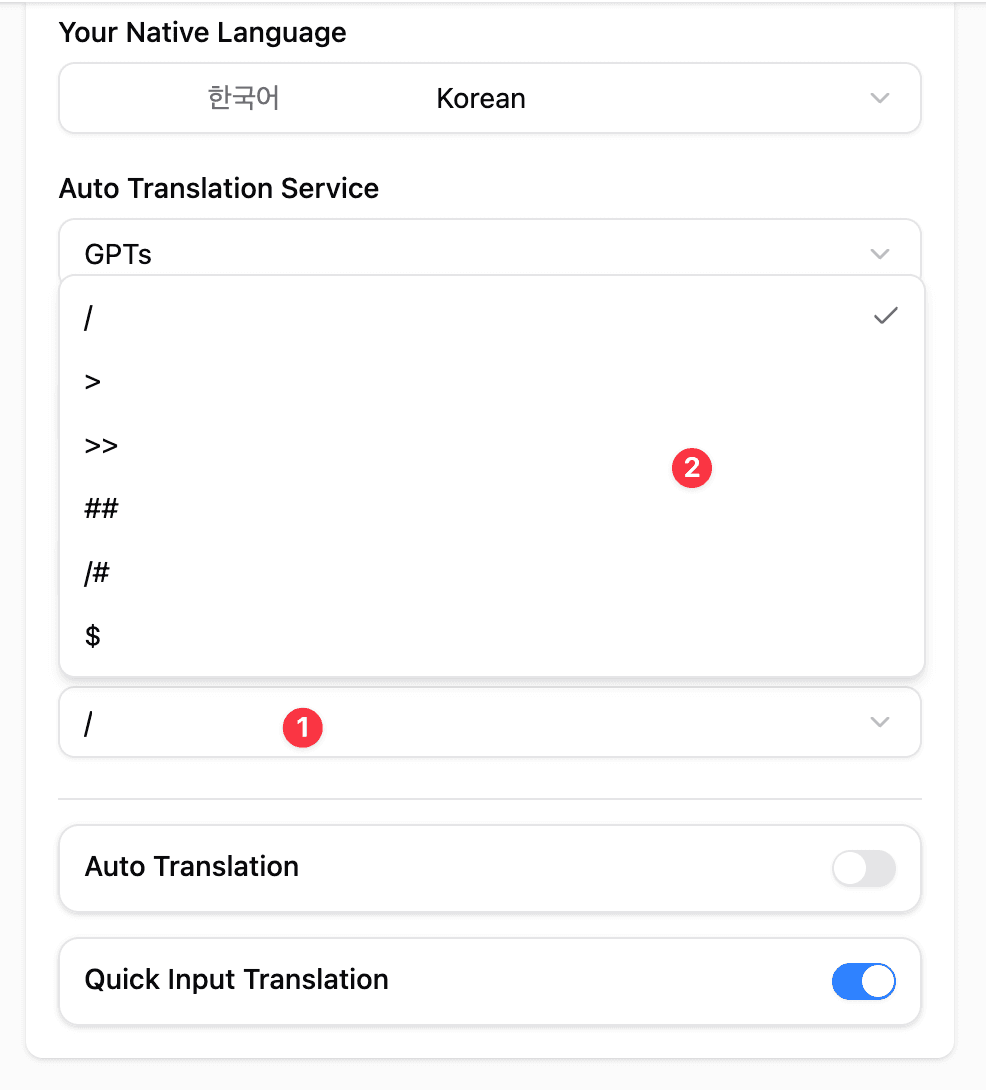
Use Quick Input
Input Content: Nice to see you
End Symbol: /
Language Code: ko

Full Input:
Nice to see you /ko
Type your message followed by the chosen end symbol to automatically translate it.
Language Code Reference
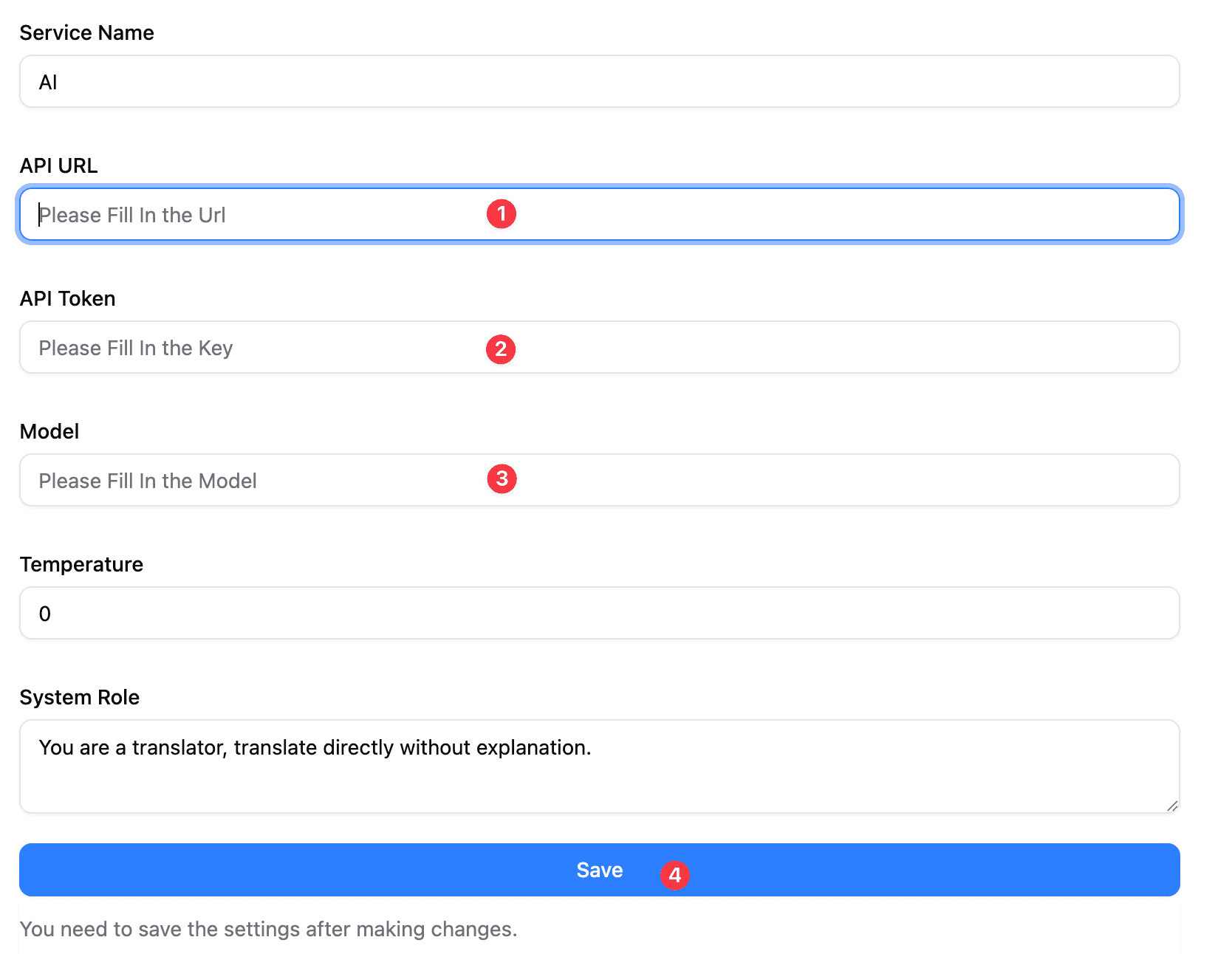
AI Translation Service Settings
Open the Options Page
Right-click the extension icon and select "Options" to open the full settings page.
This step is required to configure AI translation services.
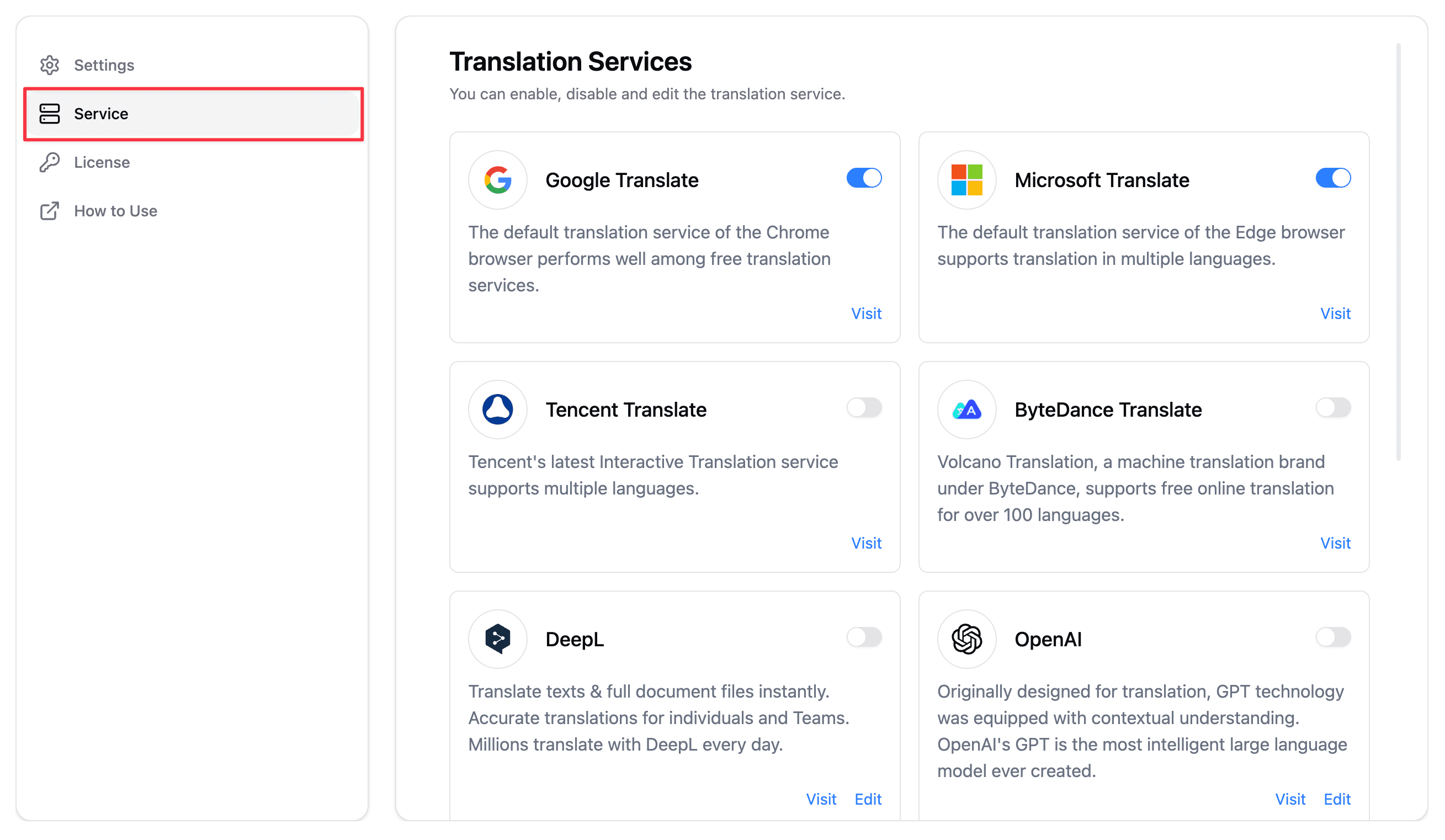
Select the Service Tab
Navigate to the Service tab to manage AI translation services.
You can add, edit, or remove services from this tab.
Edit an AI Service
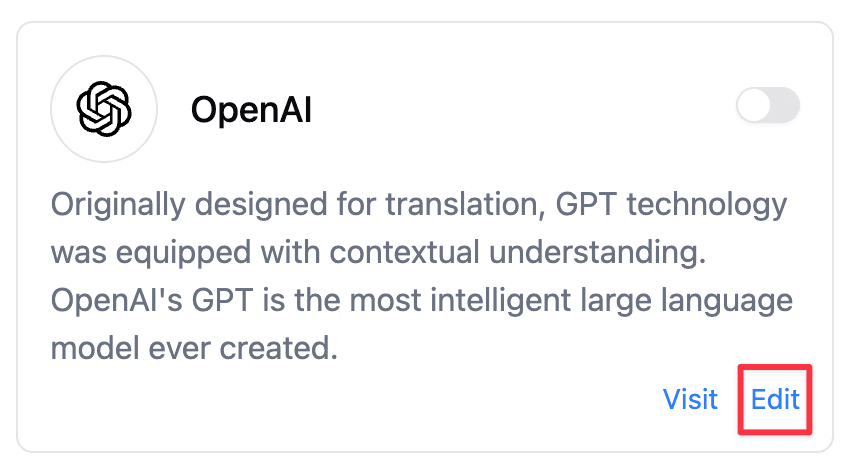
Click the "Edit" button next to the AI service you want to configure.
Make sure your API key and endpoint are correct to avoid connection errors.
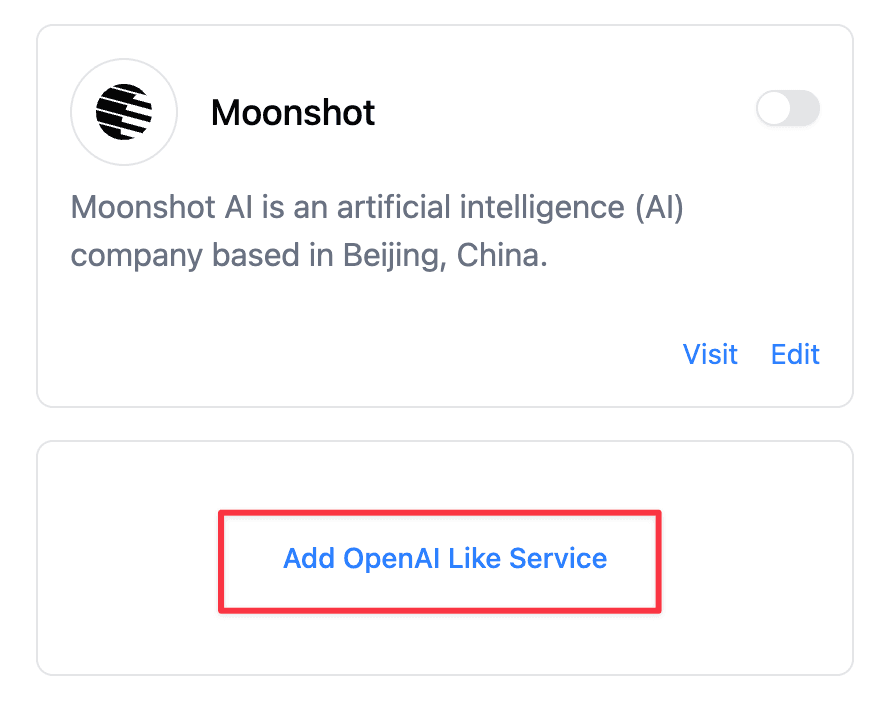
Add a New AI Translation Service
Click "Add OpenAI-Like Service" to create a new AI service entry.
This allows you to use multiple AI services for translation.
Configure the AI Service
Fill in the required fields to set up your AI translation service properly.
Double-check your configuration before saving to ensure translations work smoothly.